Epson ET-15000 Epson ET-16600 Epson ET-16650 Epson ET-1910 Epson ET-1913 Epson ET-2400 Epson ET-2410 Epson ET-2550 Epson ET-2650 Epson ET-2720 Epson ET-2750 Epson ET-2760 Epson ET-2800 Epson ET-2840 Epson ET-2850 Epson ET-2900 Epson ET-2980 Epson ET-3600 Epson ET-3700 Epson ET-3710 Epson ET-3750 Epson ET-3760 Epson ET-3830 Epson ET-3850 Epson ET-3930 Epson ET-3950 Epson ET-4500 Epson ET-4550 Epson ET-4700 Epson ET-4750 Epson ET-4760 Epson ET-4800 Epson ET-4810 Epson ET-4850 Epson ET-4950 Epson ET-5150 Epson ET-5170 Epson ET-5180 Epson ET-5185 Epson ET-5800 Epson ET-5850 Epson ET-5880 Epson ET-7700 Epson ET-7750 Epson ET-8500 Epson ET-8550 Epson ET-8700 Epson ET-M1170 Epson ET-M2170 Epson ET-M3170 Epson PictureMate PM 400 Epson WorkForce EC-C110 Epson WorkForce Pro EC-4020 Epson WorkForce Pro EC-4030 Epson WorkForce Pro EC-4040 Epson WorkForce Pro EC-C7000 Epson WorkForce Pro EM-C7100 Epson WorkForce Pro EM-C800 Epson WorkForce Pro EM-C8100 Epson WorkForce Pro EM-C8101 Epson WorkForce Pro EP-C7000 Epson WorkForce Pro EP-C800 Epson WorkForce Enterprise AM-C10000 Epson WorkForce Enterprise AM-C400 Epson WorkForce Enterprise AM-C4000 Epson WorkForce Enterprise AM-C5000 Epson WorkForce Enterprise AM-C550 Epson WorkForce Enterprise AM-C550z Epson WorkForce Enterprise AM-C6000 Epson WorkForce Enterprise AM-M5500 Epson WorkForce Enterprise WF-C17590 Epson WorkForce Enterprise WF-C20590 Epson WorkForce Enterprise WF-C20600 Epson WorkForce Enterprise WF-C20750 Epson WorkForce Enterprise WF-C21000 Epson WorkForce Enterprise WF-M20590 Epson WorkForce Enterprise WF-M21000 Epson WorkForce Pro ST-C5000 Epson WorkForce Pro ST-C5500 Epson WorkForce Pro ST-C8000 Epson WorkForce Pro ST-C8090 Epson WorkForce Pro WF-3720 Epson WorkForce Pro WF-3730 Epson WorkForce Pro WF-3820 Epson WorkForce Pro WF-4720 Epson WorkForce Pro WF-4730 Epson WorkForce Pro WF-4740 Epson WorkForce Pro WF-4820 Epson WorkForce Pro WF-4830 Epson WorkForce Pro WF-6090 Epson WorkForce Pro WF-6530 Epson WorkForce Pro WF-6590 Epson WorkForce Pro WF-7210 Epson WorkForce Pro WF-7310 Epson WorkForce Pro WF-7820 Epson WorkForce Pro WF-7840 Epson WorkForce Pro WF-C4310 Epson WorkForce Pro WF-C4810 Epson WorkForce Pro WF-C5210 Epson WorkForce Pro WF-C5290 Epson WorkForce Pro WF-C529R Epson WorkForce Pro WF-C5310 Epson WorkForce Pro WF-C5390 Epson WorkForce Pro WF-C5710 Epson WorkForce Pro WF-C5790 Epson WorkForce Pro WF-C579R Epson WorkForce Pro WF-C5810 Epson WorkForce Pro WF-C5890 Epson WorkForce Pro WF-C8190 Epson WorkForce Pro WF-C8690 Epson WorkForce Pro WF-C869R Epson WorkForce Pro WF-C878R Epson WorkForce Pro WF-C879R Epson WorkForce Pro WF-M4119 Epson WorkForce Pro WF-M4619 Epson WorkForce Pro WF-M5299 Epson WorkForce Pro WF-M5399 Epson WorkForce Pro WF-M5799 Epson WorkForce Pro WF-M5899 Epson WorkForce ST-2000 Epson WorkForce ST-3000 Epson WorkForce ST-4000 Epson WorkForce ST-C2100 Epson WorkForce ST-C4100 Epson WorkForce ST-M1000 Epson WorkForce ST-M3000 Epson WorkForce WF-100 Epson WorkForce WF-110 Epson WorkForce WF-2630 Epson WorkForce WF-2650 Epson WorkForce WF-2660 Epson WorkForce WF-2750 Epson WorkForce WF-2760 Epson WorkForce WF-2830 Epson WorkForce WF-2850 Epson WorkForce WF-2860 Epson WorkForce WF-2930 Epson WorkForce WF-2950 Epson WorkForce WF-2960 Epson WorkForce WF-7710 Epson WorkForce WF-7720 Epson XP-340 Epson XP-4100 Epson XP-4200 Epson XP-440 Epson XP-5100 Epson XP-530 Epson XP-6000 Epson XP-6100 Epson XP-620 Epson XP-630 Epson XP-640 Epson XP-7100 Epson XP-820 Epson XP-830 Epson XP-8500 Epson XP-860 Epson XP-8600 Epson XP-8700 Epson XP-8800 Epson XP-970 Epson XP-980 Epson XP-15000
When trying to set up my printer in Windows 11, the installer stalls and does not respond. What should I do?
The Windows Ready Print feature in Windows 11 may interfere with the installation of your Epson printer driver.
To use the Epson printer driver, you need to disable Windows Ready Print, remove the existing print queue, and reinstall the Epson driver. To do this, see the instructions below.
Disable Windows Ready Print
- In Windows, select Settings > Bluetooth & devices > Printers & scanners.
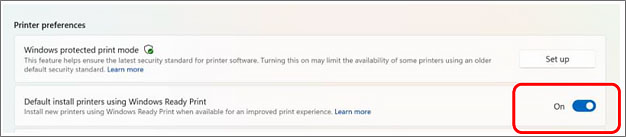
- Under Printer preferences list, turn off the Default install printers using Windows Ready Print setting. You may need to scroll down to find the selection.
Remove the Existing Print Queue
- In Windows, select Settings > Bluetooth & devices > Printers & scanners.
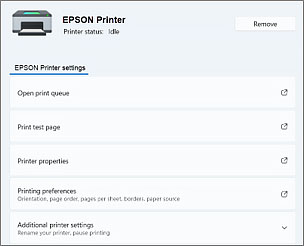
- Find your printer model on the list and select it.
- Select Remove.
Reinstall the Printer
Reinstall your printer using the EPSON installer.